
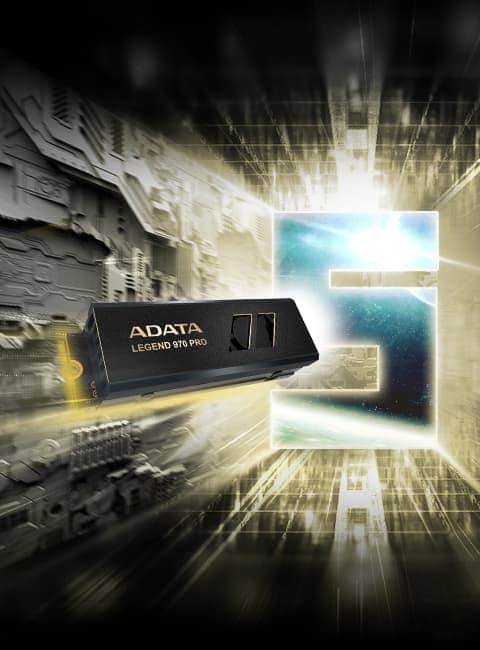



- Interface de transmission PCIe Gen5 x4
- Jusqu'à 14 000/11 000 Mo/s de vitesse de lecture/écriture séquentielle
- L'alliage d'aluminium à double couche et le ventilateur forment un système de refroidissement par air actif
- Par rapport à un dissipateur thermique sans ventilateur, les températures ont été considérablement réduites de 20 %
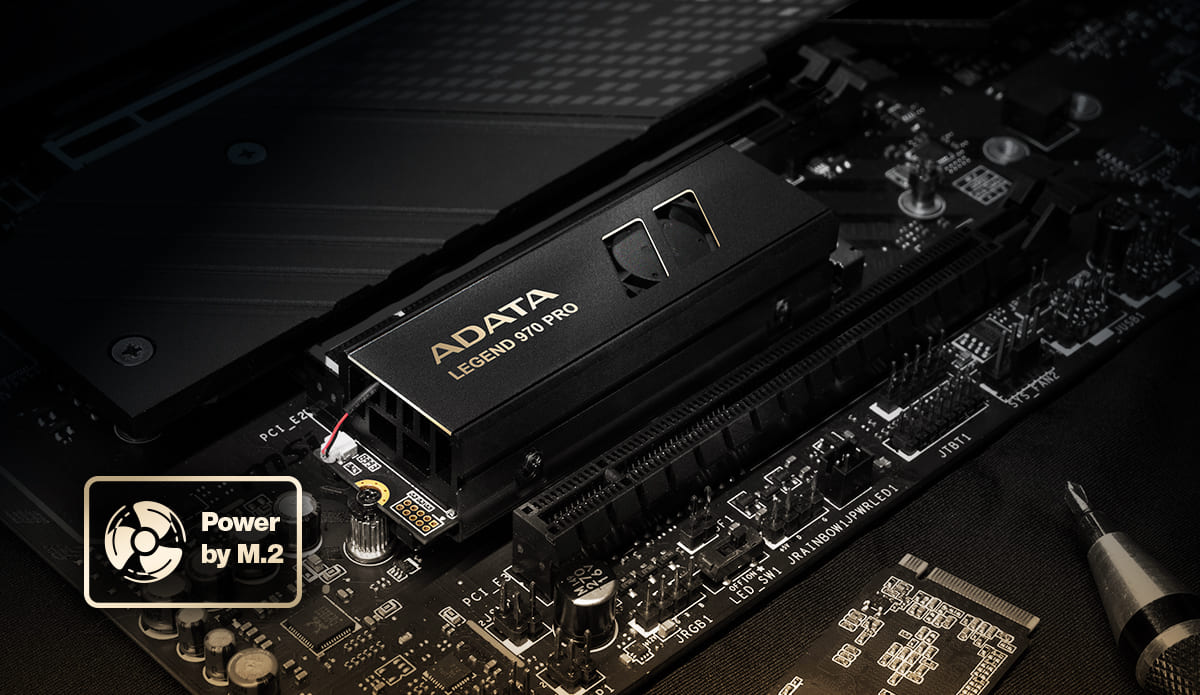
- Le refroidissement actif est alimenté directement depuis l'emplacement M.2, aucun câble de charge supplémentaire n'est nécessaire
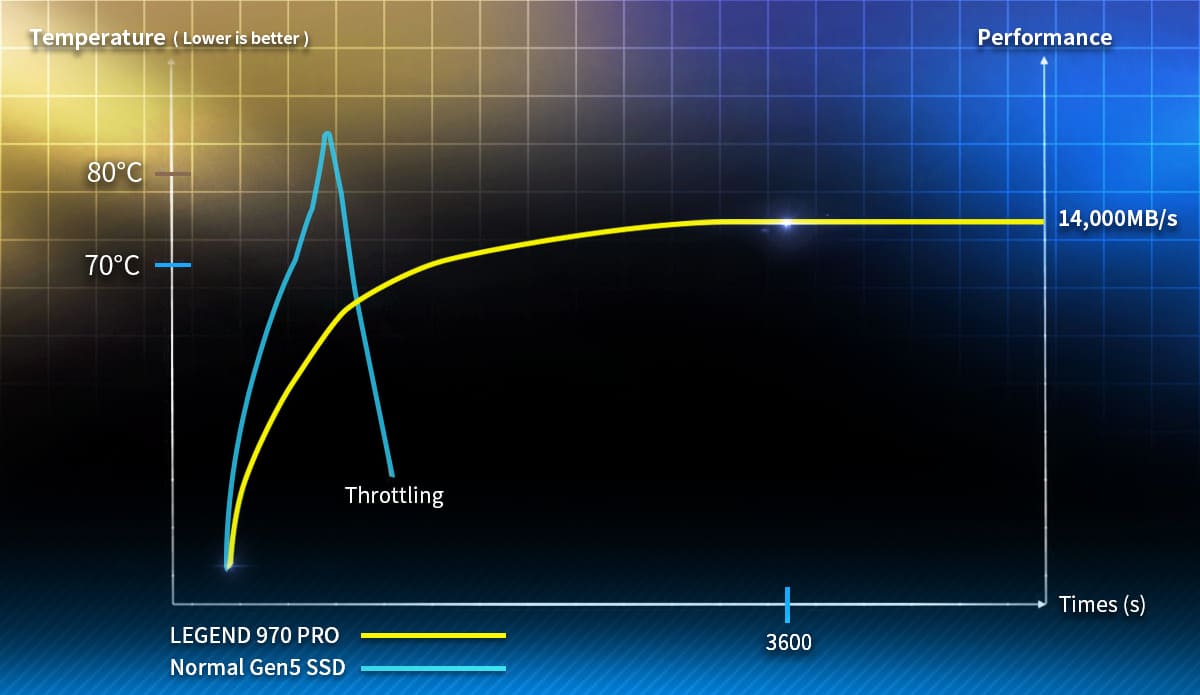
- Fonctionne à long terme sans ralentir ni s'écraser
- Prend en charge les dernières plates-formes Intel et AMD
*Télécharger Boîte à outils SSD pour que le dernier Firmware optimise les performances et obtienne d'autres fonctions à valeur ajoutée
** Vérifiez le lien pour la liste des tests de compatibilité des cartes mères prenant en charge le SSD PCIe Gen5. Ce produit est compatible avec les plateformes Gen4 et Gen3, mais les performances peuvent être limitées. Les performances optimales de Gen5 nécessitent une plate-forme compatible Gen5.
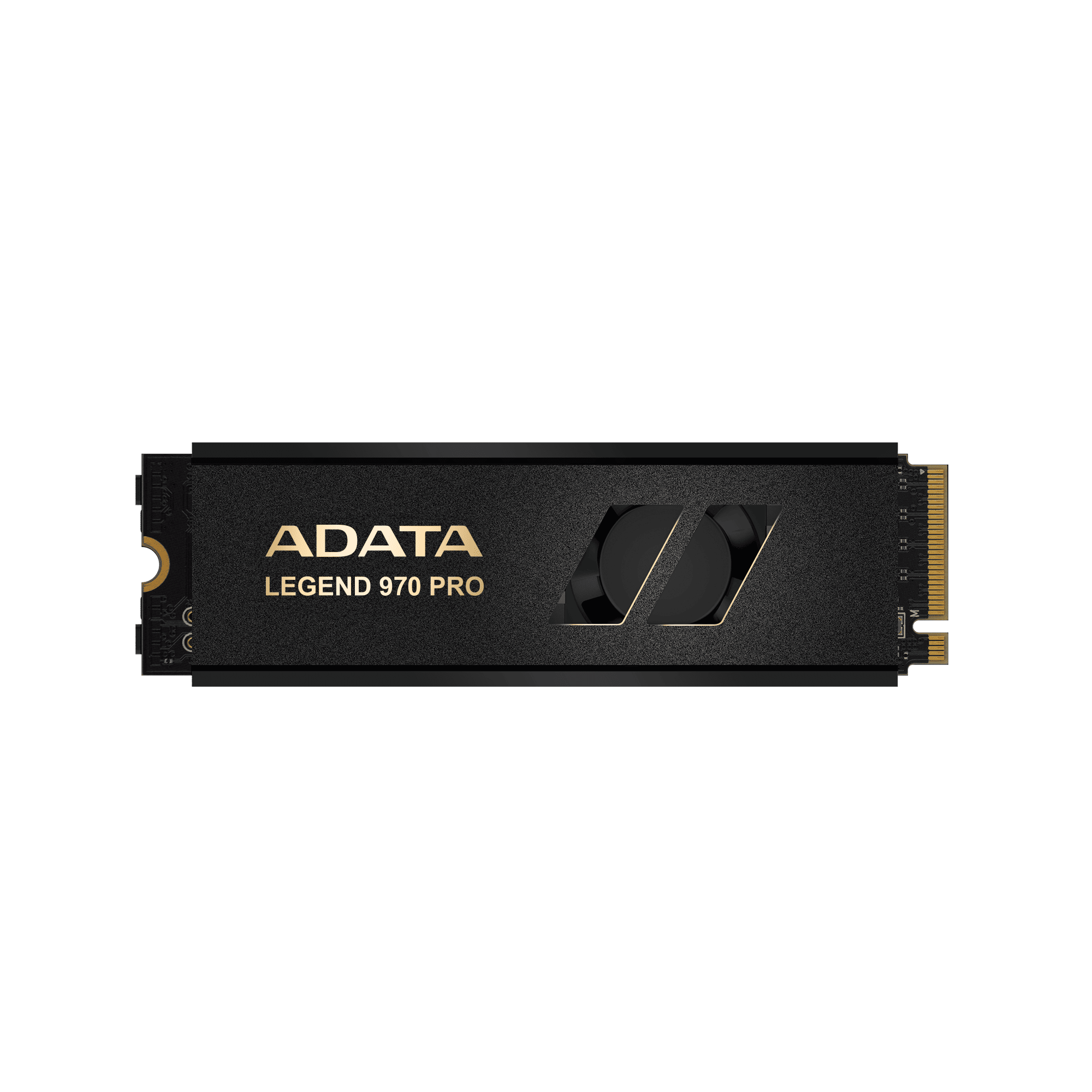
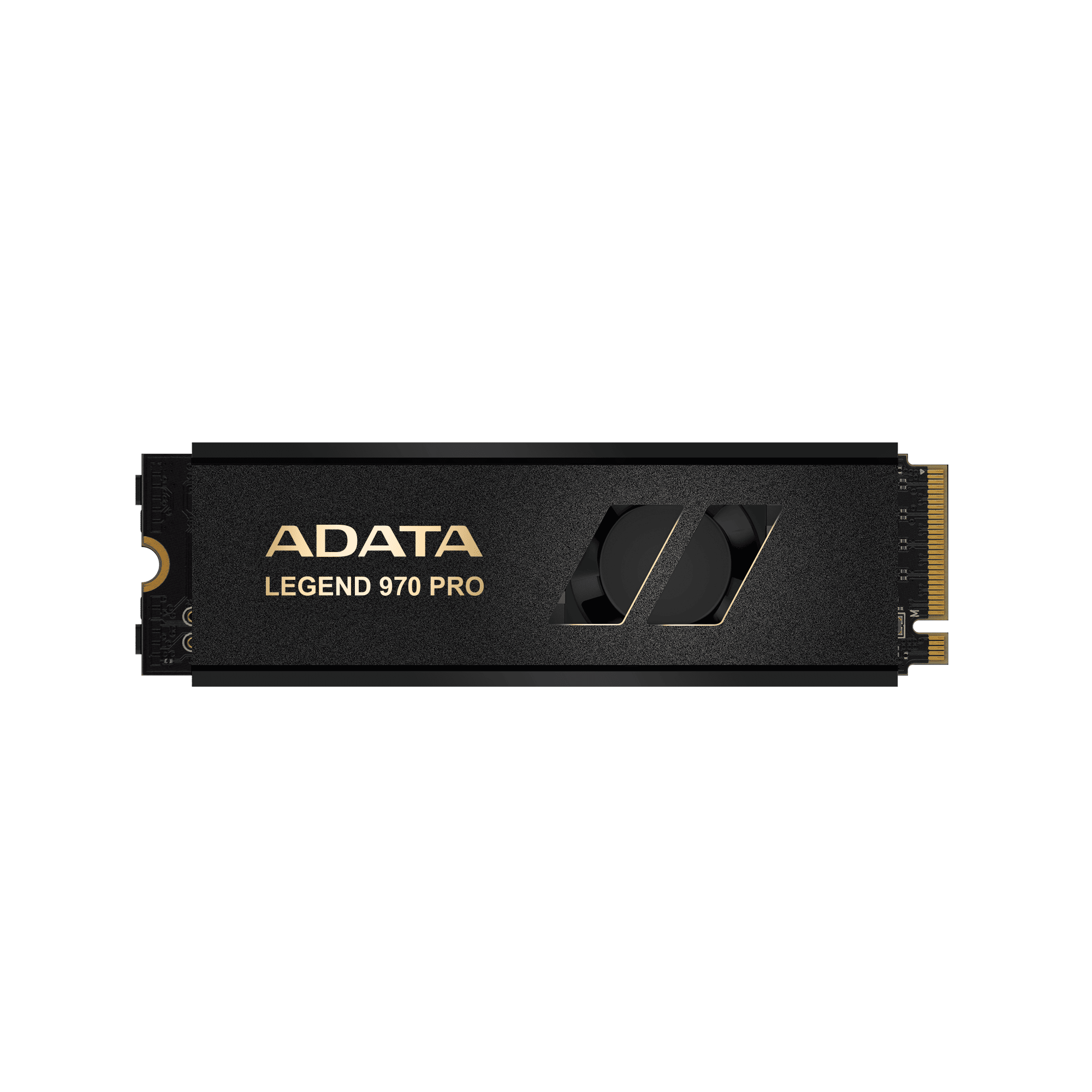

Exprimez votre créativité comme jamais auparavant
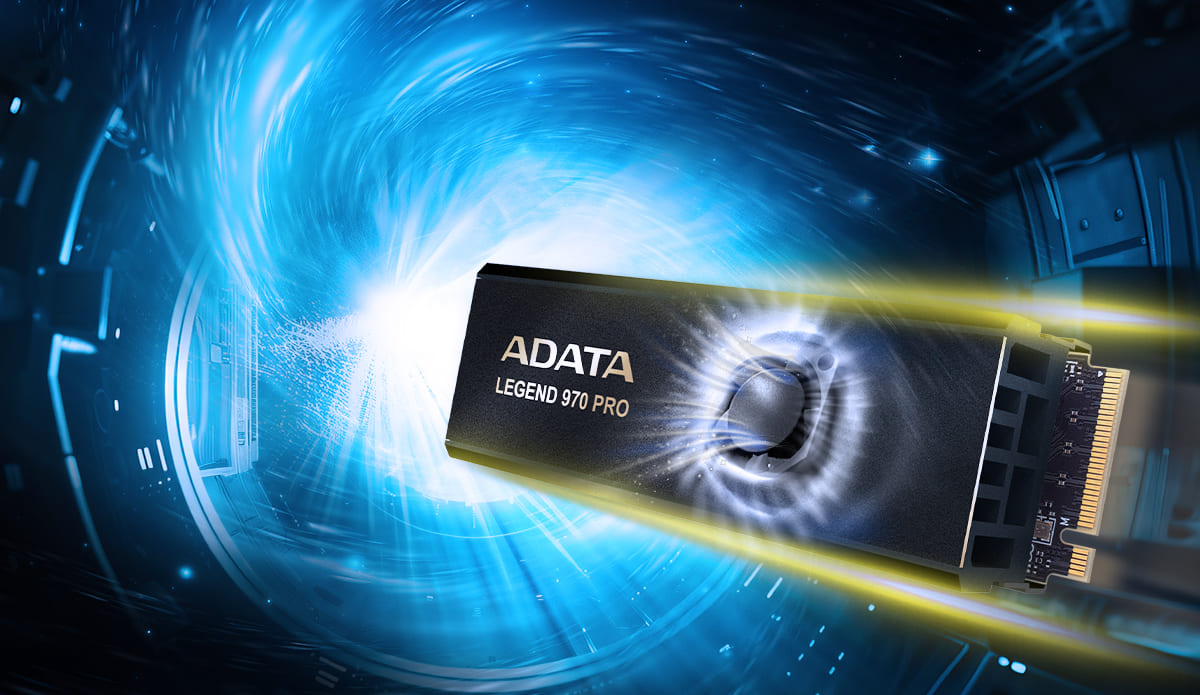
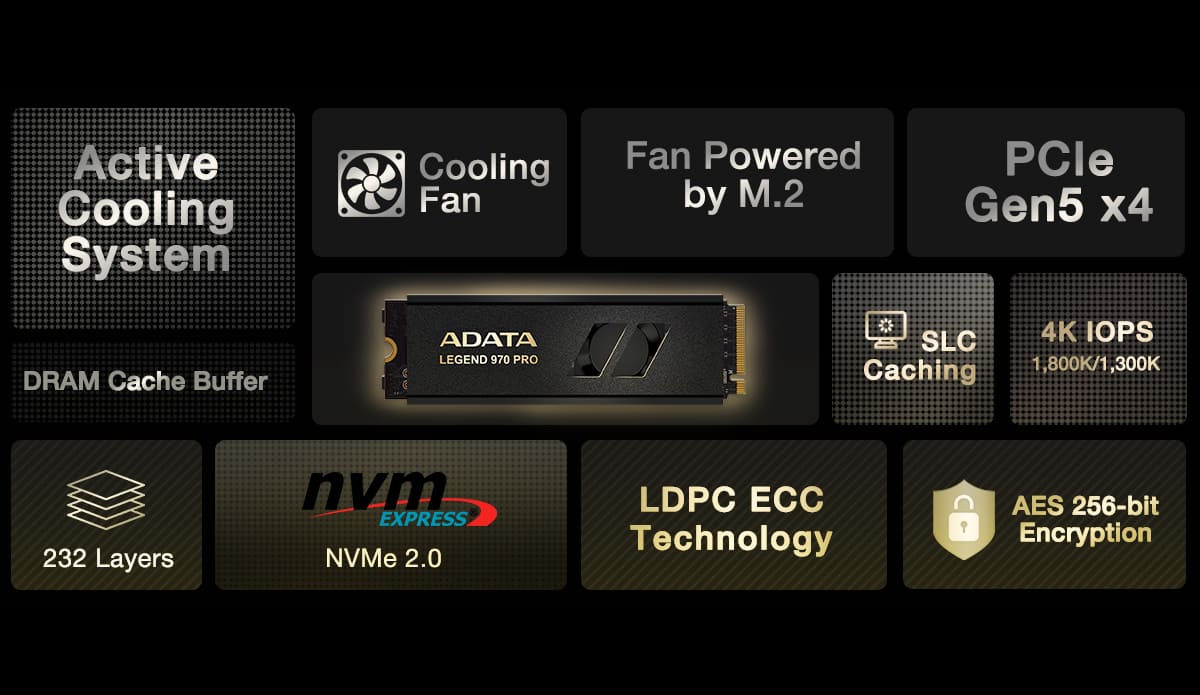
Le LEGEND 970 PRO adopte l'interface de transmission PCIe Gen5 x4 de dernière génération, répondant à la norme NVMe 2.0 et prenant en charge les dernières plates-formes Intel et AMD. Il gère l'animation ou la création graphique avec une facilité sans précédent.
Performances illimitées
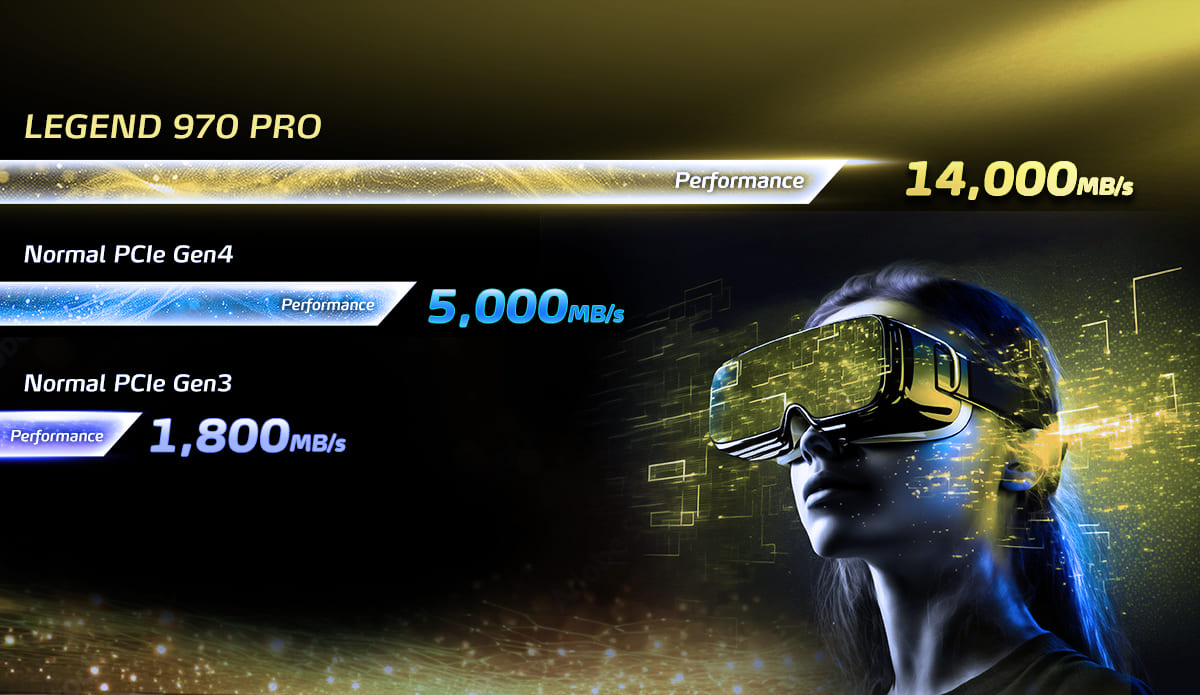
Combien de temps faut-il attendre pour charger un fichier ?! Le LEGEND 970 PRO dispose d'une vitesse de lecture/écriture séquentielle de 14 000/11 000 Mo par seconde, soit le double des performances des SSD PCIe Gen4 et 8 fois plus rapide que les SSD Gen3 standard. Il est entièrement rétrocompatible avec les plates-formes PCIe 4.0 et 3.0. Terminez chaque tâche en quelques secondes seulement !
Le refroidissement actif rend la création un jeu d'enfant
La surchauffe entraîne-t-elle des retards dans les performances de votre PC ? Le LEGEND 970 PRO adopte un dissipateur thermique en forme d'ailette en aluminium extrudé double couche !¹ Ce conduit d'air creux détourne l'air chaud de l'air froid et utilise ensuite un micro-ventilateur intégré pour accélérer l'évacuation de la chaleur. Ce « refroidissement actif » unique réduit considérablement la température d'entraînement par rapport aux dissipateurs thermiques sans ventilateur jusqu'à 20 %². Le refroidissement par air rend votre système soyeux et lisse !
¹Le dissipateur thermique est préinstallé. Veuillez tenir compte de l'espace disponible pour l'installation avant d'acheter ce produit. Vérifiez si votre carte mère est équipée d'un dissipateur thermique M.2 (consultez le manuel d'instructions du fabricant de la carte mère). Si tel est le cas, veuillez le retirer avant d'installer ce produit.
²Données de dissipation thermique basées uniquement sur des conditions de test internes en laboratoire. Les chiffres réels peuvent varier en fonction du logiciel, du matériel et de l'environnement de test individuels.
³Les dysfonctionnements causés par le démontage de ce produit affecteront la garantie du produit.
Faites plus avec moins de tracas
La gestion des câbles est ennuyeuse et les installations compliquées sont un véritable casse-tête ! Le ventilateur intégré du LEGEND 970 PRO ne nécessite pas de câble d'alimentation supplémentaire et le SSD est prêt à l'emploi dès qu'il est branché sur l'emplacement M.2. Simplifier la complexité est la meilleure solution.
QuiKTIPS : Le refroidissement actif est la clé de performances stables
Pourquoi avons-nous besoin d’un refroidissement actif ? La chaleur générée par la transmission PCIe 5.0 à haut débit ne peut plus être dissipée efficacement par les dissipateurs thermiques standard et les températures élevées affecteront la vitesse de lecture/écriture des données. Pire encore, une chaleur non atténuée fera planter le système en quelques secondes. La dissipation thermique active du LEGEND 970 PRO a été analysée et optimisée à l'aide de plusieurs simulations thermiques. Il peut résister à un environnement à haute température tout en maintenant des performances stables même lorsqu'il fonctionne à vitesse maximale sur une longue période.
*Données de dissipation thermique basées uniquement sur des conditions de tests internes en laboratoire. Les chiffres réels peuvent varier en fonction du logiciel, du matériel et de l'environnement de test individuels.
QuiKTIPS : Analyse du fonctionnement du refroidissement actif
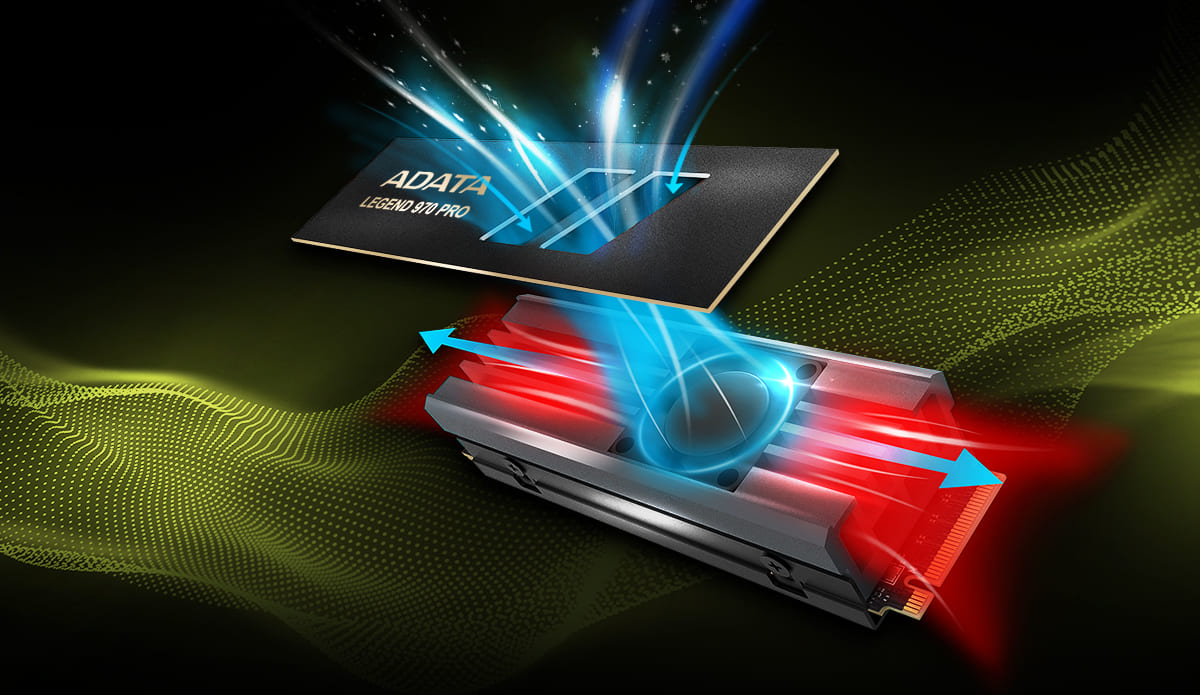
Comment fonctionne le refroidissement actif ? Le refroidissement actif fonctionne en utilisant un dissipateur de chaleur étroitement collé et un dissipateur de chaleur métallique pour transférer la chaleur du SSD vers le haut vers des ailettes en aluminium à double couche. Un ventilateur intégré aspire l'air froid des ouvertures de la plaque signalétique et le dirige vers la partie supérieure des ailettes en aluminium. Lorsque l'air chaud monte et que l'air froid descend, l'air chaud et l'air froid se rencontrent et la rotation du ventilateur expulse rapidement la chaleur des deux côtés des ailettes en aluminium. Cette conception offre une dissipation thermique supérieure à celle des dissipateurs thermiques sans ventilateur.

Des puces de haute qualité conquièrent des fichiers surdimensionnés
Une mémoire flash 3D TLC NAND 232 couches soigneusement sélectionnée permet au LEGEND 970 PRO de disposer d'une capacité ultra-large allant jusqu'à 4 To, et le SSD utilise une variété de technologies de protection des données et de correction d'erreurs pour améliorer considérablement le TBW (Total Bytes Written) et la durabilité pour répondre aux exigences de charge élevées.
Au-delà de l'excellence
Le LEGEND 970 PRO est équipé d'un algorithme de mise en cache SLC et d'un tampon de cache DRAM. La lecture/écriture aléatoire 4K peut atteindre jusqu'à 1 800 K/1 300 K IOPS, améliorant ainsi l'efficacité du traitement multi-fichiers. Le SSD adopte également des technologies de cryptage de haut niveau telles que le mécanisme de correction d'erreur LDPC (Low Density Parity Check Code) et TCG OPAL pour garantir l'exactitude de la transmission des données et la sécurité des fichiers.
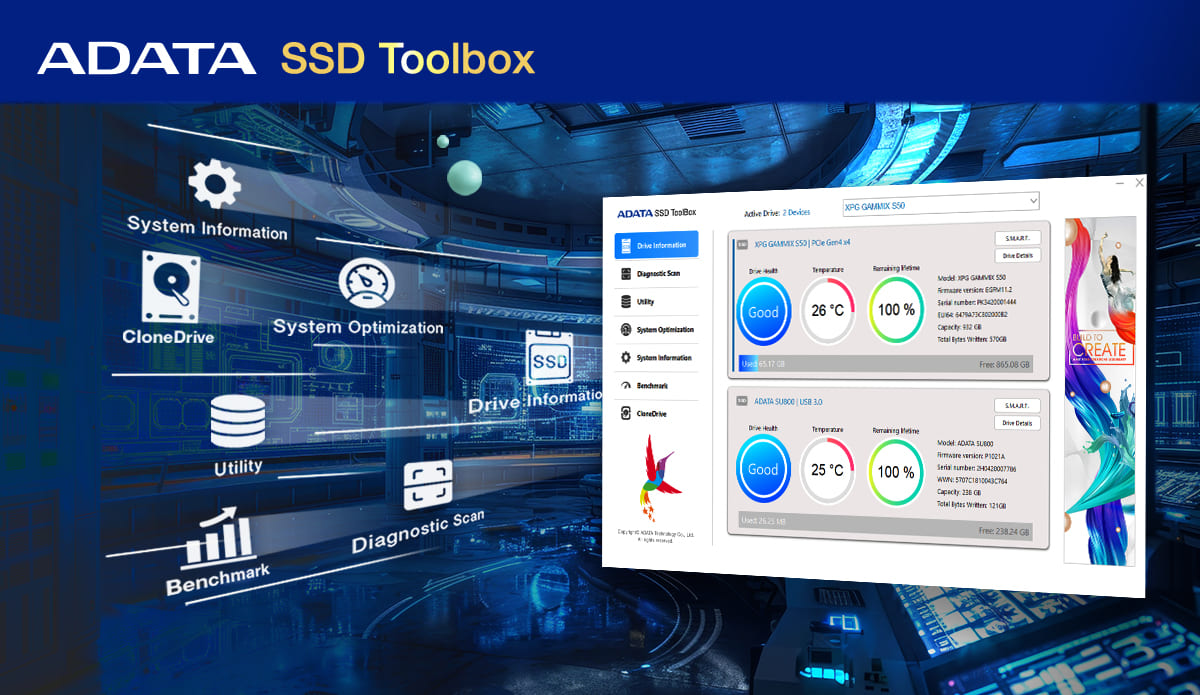
Logiciel à valeur ajoutée SSD Toolbox pour la surveillance de l'état en temps réel
SSD Toolbox garantit que les utilisateurs utilisent la dernière version du micrologiciel pour obtenir les meilleures performances et utilise la technologie d'autosurveillance, d'analyse et de reporting (SMART) pour comprendre l'état de santé et la durée de vie restante des SSD, ainsi que la température de fonctionnement actuelle et la capacité de stockage, afin que les utilisateurs puissent suivre l'état des SSD à tout moment.
| Capacité | 2 To |
|---|---|
| Facteur de forme | M.2 2280 |
| Flash NAND | 3D TLC |
| Contrôleur | IG5666 |
| Dimensions (L x W x H) | 80,6 x 24,2 x 17,9 mm / 3,17 x 0,95 x 0,7 pouces |
| Poids | 52,1 g/1,84 oz |
| Interface | PCIe Gen5 x4 |
| Lecture séquentielle (max) | Jusqu'à 14 000 Mo/s* |
| Écriture séquentielle (max.) | Jusqu'à 11 000 Mo/s* |
| IOPS à lecture aléatoire de 4 Ko (max.) | Jusqu'à 1 800 000* |
| IOPS d'écriture aléatoire de 4 Ko (max.) | Jusqu'à 1 300 000* |
| Température de fonctionnement | 0°C - 70°C |
| Température de stockage | -40°C-85°C |
| Résistance aux chocs | 1 500 G/0,5 ms |
| MTBF | 1 600 000 heures |
| Téraoctets écrits (TBW) | 2 960 To** |
| Remarque |
Rappel important : si le SSD lui-même est équipé de dissipateurs thermiques, le démontage et le retrait du dissipateur thermique vous-même sont considérés comme des dommages causés par l'homme et ne seront pas couverts par la garantie. * Ce produit est compatible avec les dernières plateformes Intel et AMD et doit être utilisé avec une carte mère prenant en charge PCIe 5.0 pour obtenir des performances optimales. Les performances réelles peuvent varier en fonction des configurations matérielles et logicielles. * Ce produit est rétrocompatible avec PCIe 4.0 et 3.0. * Configuration du système de test : 1. MB Info : ASUS ROG CROSSHAIR X670E HERO, 2. Processeur : processeur AMD Ryzen 9 7950X3D 16 cœurs 4,2 GHz, RAM : DDR5 16 Go*2 2666 MHz, 5. Version du système d'exploitation : Windows 11 / 23H2 ** La valeur est la quantité minimale de téraoctets écrits qui pourrait être atteinte. *** Le SSD est basé sur le TBW ou Période de garantie. Visiter https://www.adata.com/tw/support/warranty/ |
-
A:
Please first confirm whether you have set the SSD as a virtual disk (Control Panel>System and Security>Storage Spaces). Toolbox is unable to detect a virtual disk. You can delete the virtual disk in Storage Spaces or format and initialize the SSD in Disk Management. Toolbox will then recognize the SSD.
-
A:
ADATA SSD warranties are based on warranty period or Total Terabytes Written (TBW).
1. Please refer to this link for specific warranty information for your product.
https://www.adata.com/en/support/warranty/
2. Please refer to this link for the TBW of your product.
-
A:
DRAM buffer is a function designed to improve the efficiency of reading and writing. Generally, it is composed of 1 to 2 DRAM modules on an SSD. Whether an SSD has a DRAM buffer is often decided by the manufacturer according to its market positioning. Generally speaking, entry-level models do not typically have a DRAM buffer.
-
A:
Wear leveling is a process that is designed to extend the life of solid state storage devices. SSDs are store data in blocks. Each block can tolerate a finite number of program/erase cycles before becoming unreliable. For example, MLC NAND flash is typically rated at about 3,000 program/erase cycles. Wear leveling arranges data so that write/erase cycles are distributed evenly among all of the blocks in the device.
-
A:
SSD TRIM is an Advanced Technology Attachment (ATA) command that enables an operating system to inform a NAND flash solid-state drive (SSD) which data blocks it can erase because they are no longer in use. The use of TRIM can improve the performance of writing data to SSDs and contribute to longer SSD life. Currently, TRIM is used in Windows 7, Server 2008, Mac OS 10.7, and newer versions of Linux. In addition, regardless of operating system, no RAID configuration supports TRIM.
-
A:
According to the Serial ATA International Organization the SATA 3.0 specification offers transfer speeds up to 6Gbps compared to 3Gbps for SATA 2.0. Regardless, SATA 2.0 and SATA 3.0 use the same interface and cables.
-
A:
At present, various storage methods, including optical discs, hard drives, and SSDs are not ideal for storing data permanently. Therefore, we recommend that important data be backed up to several different devices to diversify your risks.
-
A:
The lifespan of an SSD is based on its health. ADATA's SSD ToolBox is a set of auxiliary software for checking SSD health. In principle, your health will be determined by the length of time you use your SSD and the number of read and write cycles. The longer you use it, the more read and write cycles, the shorter the lifespan of your SSD. Generally speaking, SSDs have wear-leveling technology built-in that helps extend the lifespan of your SSD. However how you use your SSD is the main factors in determining your SSDs lifespan. If a large amount of data is written over a long period of time or if you use your SSD in extreme environments, lifespan may be shortened.
Download ADATA SSD ToolBox: https://www.adata.com/us/support/downloads/
-
A:
Speeds may vary because different test software use different parameter settings and test methods, and the different testing environments and PC configurations may also have an influence (for example: different motherboards or CPUs, etc.). In addition, the amount of free space, namely lack of, will also affect writing speeds. For better performance, you can try the following:
1. Please check if the slot currently used by the SSD can support the specifications of the SSD. (For example, if a PCIe Gen3x4 SSD is inserted into a PCIe Gen3x2 slot, the speed will be limited by the PCIe Gen3x2 slot)
2. Remove unnecessary software or data from the SSD, or reformat it.
3. Use CrystalDiskMark or ATTO Disk Benchmark to test your SSDs speeds.
4. If your SSDs speed is still slow, please take a screenshot of your SSDs speed test results and send it to our customer service staff for review.
-
A:
The difference in capacity is mainly due to the different calculation methods used by your PCs operating system and the SSD. SSDs calculate capacity based on the decimal system, e.g.: 1KB - 1000 Byte bytes, 1MB - 1000KB, 1GB - 1000MB, 1TB - 1000GB, and so on; Your PCs operating system uses the binary system, e.g. 1KB x 1024 Byte byte, 1MB x 1024KB, 1GB x 1024MB, 1TB x 1024GB, and so on. For example, if the packaging shows capacity or 500GB, it is calculated as follows: 500GB x 500 x 1,000MB x 1,000KB x 1,000Byte x 500,000,000,000Byte. Your PCs operating system will calculate as follows: 500,000,000,000 Byte/1024KB/1024MB/1024GB, or approximately 465GB.
Remarks: For a faster calculation method, the capacity listed on the packaging can be calculated as x0.93=SSD for approximate capacity
-
A:
HDD Sentinel Health displays anomalies because this tool incorporates the S.M.A.R.T attribute 168 (A8), 159 (9F) fields into the health display, but these two fields are self-defined by each vendor, so these two fields are not associated with health calculations. Please remove the wrong interpretation position of the two fields according to the illustration, and the SSD health can be displayed as normal.
-
A:
This is related to the storage format of your SSD. If using the Windows FAT32 format, the maximum size of any single file is limited to 4GB. To avoid this situation, please change reformat your SSD to NTFS.
-
A:
Troubleshoot with the following:
1. The SSD has wear-leveling technology built-in to enhance the product's lifespan. The slower speeds may be due to concurrent reformatting, but this situation is not common, especially when it is not a brand new SSD. Contact our customer service staff for help in troubleshooting.
2. Insufficient free space will also affect the writing speed. You can try to delete files to free up space on your SSD.
-
A:
ADATA SSDs are designed in accordance with the Serial ATA International Organization standards and have undergone rigorous testing to ensure they work with various operating systems.
Note:
1. NVMe (PCIe) M.2 SSDs require Windows 8.1 or later to support the NVMe driver (we recommend Windows 10 for better the best experience and usability). Linux, including Fedora, SUSE, Ubuntu, and Red Hat, is also supported.
2. AHCI(SATA) M.2 SSDs can be used with Windows 7 or later.
-
A:
Since SSDs don't have mechanical drives, so there is no need for defragmentation. Defragmenting an SSD may cause unnecessary wear and tear. SSDs are designed to write data evenly on the entire drive as much as possible, thereby reducing excessive wear on any one location.
-
A:
ADATA SSDs can use standard drivers, which can be applied to different operating systems; at the same time, users can also install the drivers officially provided by the motherboard manufacturers. If you have other questions, please contact ADATA's customer service center.
Note:
1. NVMe (PCIe) M.2 SSDs require Windows 8.1 or later to support the NVMe driver (it is recommended to update to Windows 10 or later). Linux series such as Fedora, SUSE, Ubuntu, Red Hat are also supported
2. AHCI (SATA) M.2 SSDs are compatible with Windows 7 and later
-
A:
Set up RAID 0 on a compatible motherboard, then connect two SSDs of the same specification to the set port. For detailed instructions, please refer to your motherboard's user manual. The performance of the SSD with a RAID 0 configuration will be double that of a single SSD.
-
A:
If you have used the SSD normally before, but then fails to format, please try the following steps:
1. Enter "diskpart" in the command line of the "Start" menu and press "Enter" (or use the "Windows" key and "R")
2. Enter "List disk" and press "Enter" to check the hard disk number (the system disk is Disk 0. If only 1 SSD is connected, it should labeled as Disk 1.)
3. Type "select disk 1" and press "Enter" to select the SSD
4. Type "clean" and press "Enter", the partitions of the SSD will be deleted
-
A:
1. Make sure you have already formatted and partitioned your new 2.5" SATA of M.2 SSD. For detailed instructions for Windows 7, please click here; For Windows 8.1 or Windows 10, please click here; For Windows XP, please click here.
2. If your SSD cannot be detected (including unrecognizable, unreadable, etc.) after it has worked normally for a period of time, please follow steps:
M.2 SSD => Loosen the screws and remove the M.2 SSD and check the interface connector for dirt or scratches. Then reinstall it.
SATA 2.5-inch SSD => Unplugged the SATA cable and check the interface connector for dirt or scratches. Then reinstall and ensure the cable is properly plugged in. In some cases, an old cable may cause your SSD to not be detected.
If you have tried the above but the problem persists, the SSD might be faulty. Check your warranty period on ADATA's official website.
Query URL: https://www.adata.com/en/support/warranty/
If it is inconvenient for you to visit a service center for repair, you can apply for online repair at ADATA's website:
https://www.adata.com/us/member/login/
After completing the application, please follow the instructions to properly package the product and then send it to the designated address. After ADATA has received your product, we will begin to process it as soon as possible.
[Important reminder:]
1. ADATA service centers are only responsible for repairing products with malfunctions not caused by the user (the product must have no exterior damage and the stickers must remain intact) The warranty scope and authenticity of the product will be determined by the original factory based on the product received for repair.
2. It is recommended to take photos of the front and back of the product for your later reference before sending it in for repair.
3. ADATA only repairs the product and does not provide data backup services. Please be sure to back up your data. If the data is lost or damaged due to the repair process, the ADATA will not be held responsible.
-
A:
If you encounter this problem, please refer to your motherboard's user manual or the manufacturer's website. Motherboards vary by model and brand. The type and quantity of I/O ports are not the same; therefore, when a SATA or NVMe M.2 SSD is inserted into the slot, it may be affected by I/O. The sharing of channels by the ports results in a limited number of channels supported by the chipset, rendering some 7pin SATA sockets unusable.
-
A:
PCs that do not support PCIe Gen4 SSDs can still use the said SSDs. However, the SSDs performance will be limited to PCIe Gen3 levels.
-
A:
Firstly check the make and specifications of your motherboard on the manufacturers website to see if it has M.2 slots that support PCIe 4x4. If there are two M.2 PCIe 4x4 slots, you can use the direct link to the CPU terminal (center Processor) M.2 socket for better performance
-
A:
Firstly, confirmed your SSDs form factor - M.2, mSATA, or SATA. Locate the correct slot type on your motherboard, insert your SSD and secure it with screws. For video instructions, M.2 SSD on desktop please click here, M.2 SSD on laptop please click here, SATA SSD on desktop please click here, SATA SSD on laptop please click here.
-
A:
If you have an M.2. 2280 SSD, you can find installation instructions here.